
Car Parking Multiplayer Best Graphics Settings for Smooth Gameplay
The right graphics settings can double the smoothness of your game. Find the best setup for your phone in seconds, then scroll down for the full guide.
| Low-end phone | Low graphics, shadows off |
| Mid-range phone | Medium graphics, balanced effects |
| High-end phone | High graphics, full effects |

Car Parking Multiplayer offers realistic vehicles, detailed environments and online gameplay, but high-quality graphics can hurt performance on some devices. Players on low-end or older Android phones often run into lag, frame drops, slow loading or sudden crashes. Using the right Car Parking Multiplayer graphics settings makes the game smoother while keeping good visual quality. This guide explains the best CPM settings for different devices and how to improve gameplay performance.
In this guide
- Why graphics settings matter
- Best settings for low, mid and high-end devices
- How to increase FPS
- How to fix lag
- Best settings for multiplayer mode
- Common graphics mistakes
- Settings on PC and iPhone
- Settings by device type
- FAQ
Why Graphics Settings Matter In Car Parking Multiplayer
Graphics settings control how much of your device the game uses. A higher setting looks better, but it also asks more from your phone. A balanced setup gives smoother gameplay without making the game look poor.
Higher settings improve
- Visual details
- Vehicle quality
- Environment appearance
But they also require more
- RAM
- Processing power
- GPU performance
Best Car Parking Multiplayer Graphics Settings For Smooth Gameplay
The ideal settings depend on your device specifications. There is no single perfect setup for every player, so start with your phone tier below and fine-tune from there.
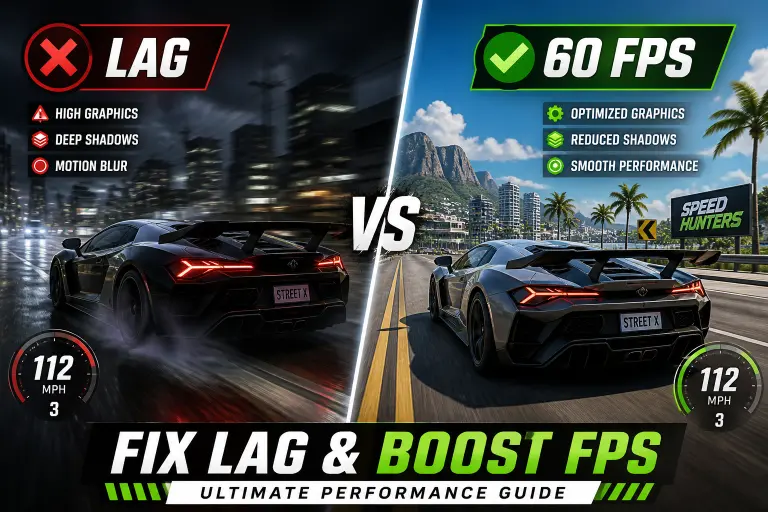
Low-End Android Devices
Older phones should focus on performance. Recommended settings:
- Lower graphics quality
- Reduce shadows
- Disable unnecessary effects
- Lower resolution if available
- Keep background apps closed
These changes help improve FPS and reduce overheating.
Mid-Range Devices
Mid-range phones can handle better visuals while staying smooth. Recommended:
- Medium graphics quality
- Normal shadows
- Balanced effects
- Stable frame rate
A good balance between appearance and performance.
High-End Devices
Powerful devices can use higher settings. Recommended:
- High graphics quality
- Maximum visual effects
- Higher details
- Better environment rendering
High-end phones handle detailed maps and vehicles more easily.
Tip: change one setting at a time and drive for a minute before changing the next. That way you can see exactly which option costs you FPS.
How To Increase FPS In Car Parking Multiplayer
FPS directly affects how smooth driving and multiplayer gameplay feel. These three habits give the biggest gain.
Close Background Applications
Apps running in the background use up your resources. Closing them can improve performance right away.
Clear Game Cache
Temporary files can sometimes cause performance issues. Clearing the cache may help with:
Careful: clear the cache only. Do not tap Clear data unless your account is linked or your progress is backed up, because it can reset the game.
Keep Enough Storage Space
Low storage affects game performance. Keep free space available for smoother operation, ideally a few GB, and remove unused apps and old downloads.
How To Fix Lag In Car Parking Multiplayer
Lag can happen for different reasons. The common causes include:
If you face serious performance issues, follow our dedicated Car Parking Multiplayer lag fix guide for step-by-step solutions.
Best Settings For Multiplayer Mode
Online gameplay needs stable performance. For multiplayer sessions:
Smooth performance is more important than maximum graphics during online races.
Graphics Settings Mistakes Players Make
Using Maximum Graphics On Weak Devices
Many players raise every setting for better visuals. The result can be FPS drops, game freezing and battery drain. A balanced setup usually gives a better experience.
Ignoring Device Temperature
When phones get hot, performance drops automatically. Playing with moderate settings helps maintain stability.
Does Updating CPM Improve Graphics Performance?
Yes. Updates can bring bug fixes, optimization improvements and better compatibility. You can follow the Car Parking Multiplayer update history and older versions to understand major changes between releases.
Graphics Settings On PC And iPhone
Playing on a computer? An emulator lets you push graphics higher, but it needs enough RAM and CPU cores. See our Car Parking Multiplayer for PC guide for the setup. On iPhone or iPad, the same rules apply: keep storage free, keep iOS updated and use balanced graphics. Our Car Parking Multiplayer iOS guide lists the requirements.
Recommended CPM Settings By Device Type
| Device Type | Typical RAM | Graphics | Performance |
|---|---|---|---|
| Low-End Phone | 2 to 3 GB | Low | Best FPS |
| Mid-Range Phone | 4 GB | Medium | Balanced |
| High-End Phone | 6 GB or more | High | Best Visual Quality |
RAM figures are a starting guide, not official numbers.
Frequently Asked Questions
Final Thoughts: Smooth Gameplay Beats Max Graphics
The best Car Parking Multiplayer graphics settings are the ones your phone can run steadily. Pick your device tier, close background apps, clear the cache and keep some storage free. If you still see stutter, lower one setting at a time until driving feels smooth.
Related guides: Car Parking Multiplayer Mod APK · Lag Fix · Car Parking Multiplayer 2 · Beta Version · Old Versions · For PC · For iOS